


Cloud Storage: Data Backup
4.4238.00 Reviews
App Specs
- Version
- 1.2.00
- Updated On
- License
- Free
- Downloads
- 1,000,000+
- Developer
- APPS GLOBAL Zone - FZCO
- Categories
- Productivity
- Platform
- Android
Screenshots
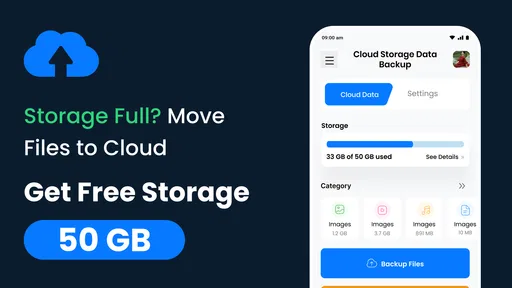
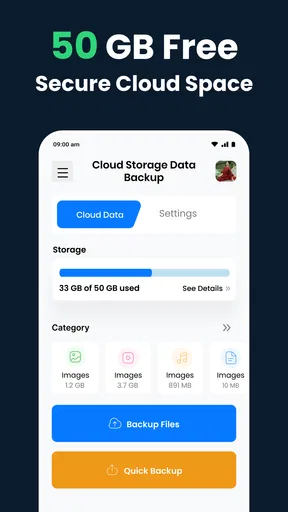
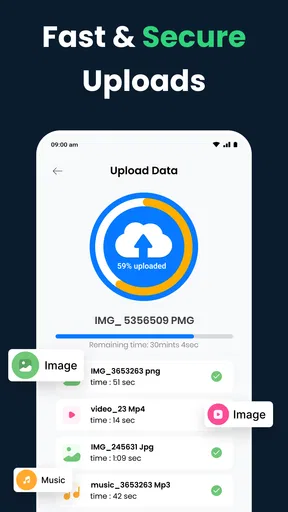
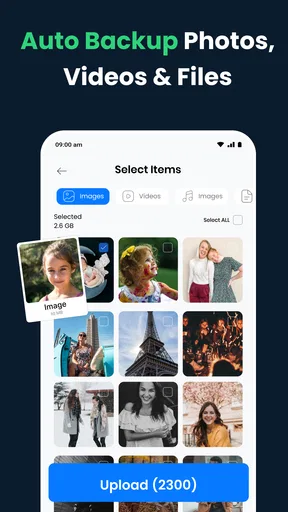
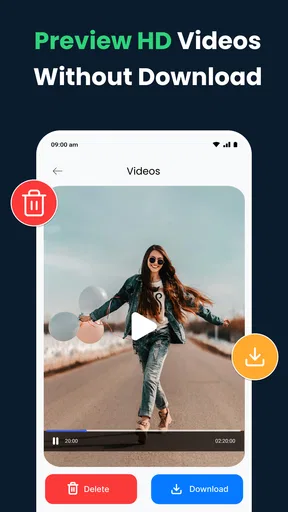
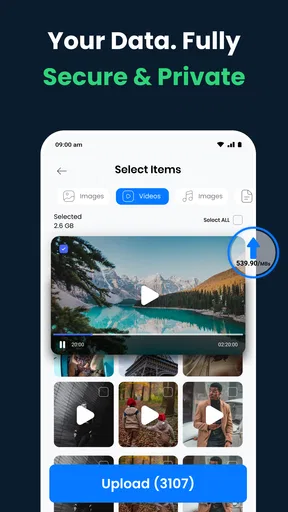
 Analysis by AppCompare
I know the feeling: a phone fills up at exactly the wrong moment, a useful video is buried among hundreds of screenshots, or a device change turns file transfer into an afternoon project. Cloud Storage: Data Backup is built around that recurring problem. It gives me a place to store photos, videos, and other files in the cloud instead of making the phone itself the only copy. After using it as a productivity tool, I see its main value less as a dramatic all-in-one solution and more as a way to remove small, repeated chores from everyday phone use.
The app is free to install and is aimed at general users, with an Everyone content rating. It comes from APPS GLOBAL Zone - FZCO and sits in the productivity category. Its store presence is substantial, with more than a million installs and an average rating of 4.4 from roughly five and a half thousand ratings. Those figures suggest that the basic idea is easy for many people to understand: put important personal files somewhere accessible, then spend less time worrying about where the latest copy is.
Where Cloud Storage: Data Backup fits into everyday storage
My first impression is that this app is most useful when I treat it as a practical storage companion rather than a replacement for every service already on my phone. The familiar alternatives—built-in device backup, a computer, an external drive, or a large established cloud platform—can all be sensible choices. Cloud Storage: Data Backup makes more sense for someone who wants a straightforward cloud-focused workspace for personal files without turning the process into a technical project.
That distinction matters. A storage app can save time only if it is easier than the problem it solves. If I have to repeatedly hunt through menus, rename everything manually, or wonder whether a file is actually available, the benefit quickly disappears. The useful test is therefore simple: can I place a file where I expect it, find it again later, and use the service as part of a normal routine?
For a person who regularly takes photos and videos, the answer can be yes. A parent might want to keep school-event recordings away from the phone’s limited local space. A freelancer might need a separate place for reference images and documents. A student could use it to keep assignment material available while moving between a phone and another device. None of these workflows requires advanced technical knowledge, but each benefits from having a second location for important material.
I would not choose it blindly for highly specialized work. People who need detailed team permissions, formal document versioning, extensive collaboration tools, or a carefully managed business archive may be better served by a platform designed specifically for those jobs. This app’s appeal is its directness: it focuses on storing and accessing personal content, not on becoming a complete office system.
The first setup is where the time-saving promise is tested
When I start with a cloud storage app, I do not want to configure a complicated filing system before saving anything. My preferred approach is to begin with a small, useful batch: a few important photos, one video, and a document I may need away from my phone. That quickly shows whether the navigation makes sense and whether the app fits my habits.
Worth Reading Before You Choose

EA SPORTS FC Mobile 26 Is a Bigger Football Game, but It Takes Time

Flipboard Shows What News Apps Must Do Beyond the Feed

Switching to Android Auto Means Rethinking Your Driving Routine

Google Calendar Makes a Crowded Week Easier to Manage

Ludo King Makes the Most of the Minutes Between Plans

Baby Panda World Brings Quick Play to Modern Phones, but Its Game Library Feels Busy
Cloud Storage: Data Backup is available for Android devices running version 7.0 or later. The current release is version 1.2.00, and the app was released on October 24, 2022. In practical terms, that makes it accessible to many older Android phones as well as newer models, which is helpful if the reason for using it is to extend the life of an existing device rather than replace it.
I recommend deciding on a simple folder logic before uploading a large collection. For example, I might separate personal documents, family media, and temporary work files. The point is not to create an elaborate archive; it is to make future retrieval predictable. A cloud account becomes frustrating when everything is technically safe but practically lost in one enormous pile.
A useful habit is to upload by purpose instead of by date alone. A folder for “travel documents” is often more useful than a folder for a particular month. Likewise, a folder for “projects to revisit” can be easier to work with than scattering related images across several calendar folders. This is a small organizational choice, but it is one of the clearest ways to save time later.
I also suggest testing retrieval immediately after the first upload. Open the stored item, check that it is the intended file, and see how quickly you can locate it again. That second step is easy to skip, yet it exposes problems in a workflow before the archive becomes large. For me, the real measure of backup is not merely whether an upload button exists; it is whether the stored material remains usable when I need it.
The app itself is free, but it includes in-app purchases ranging from $1.49 to $169.99 per item. That makes it important to look carefully at the choices presented during use and to decide what level of storage or access is actually necessary for my habits. Someone storing a modest collection may have a very different experience from someone trying to move an entire media library.
Small daily situations where it earns its place
The most convincing use case is the low-level maintenance that normally gets postponed. Imagine returning from a family gathering with a phone full of videos. I can move the keepers into cloud storage while the event is still fresh, then remove selected local copies only after checking that the stored versions are present. That workflow reduces the temptation to delete everything in a hurry or leave the phone cluttered for weeks.
Another realistic scenario is changing phones. Even when a device migration tool handles contacts and applications, personal files can still require attention. Having important material already stored separately means I am not relying entirely on a cable, a nearby computer, or the old phone remaining perfectly usable. I still need to plan the move carefully, but the cloud copy can remove one major source of last-minute stress.
For work, I find the app more useful as a personal handoff point than as a collaborative workspace. I can store a document or a collection of images, then access them when the original phone is not the most convenient device. This is particularly handy for reference material that I do not want mixed into the camera roll. The trade-off is that I should not assume it provides the review comments, shared editing, or permission controls found in dedicated team platforms.
It can also help with temporary storage. Suppose I am preparing a presentation or organizing a small event and need to collect logos, scanned notes, and short clips. Keeping those materials in one cloud location can make the project easier to resume after a break. Once the work is finished, I can clean out the temporary area instead of allowing it to become a permanent dumping ground.
One non-obvious advantage of this approach is separation. Keeping a second copy outside the phone’s ordinary gallery or local folders creates a clearer distinction between material I am actively using and material I am preserving. That can make phone cleanup less intimidating. I am less likely to postpone deleting duplicate downloads when I know the files I intentionally kept have a separate home.
There is also a useful discipline hidden in the process: cloud storage encourages me to decide what is worth keeping. Uploading every blurry image may seem safe, but it creates a future sorting problem. I get better results when I use the service for meaningful originals, important documents, and files that would be annoying or impossible to recreate.
How it compares with the usual alternatives
The built-in backup options on a phone are often convenient because they are already connected to the operating system. They may be the better choice when I want automatic device restoration, settings migration, or a seamless connection with other system services. Cloud Storage: Data Backup is more appealing when I want a separate place to organize personal files directly and think about them as stored items rather than only as part of a full-device backup.
A computer and an external drive provide local control and can be excellent for large collections. They also introduce their own chores: finding the right cable, keeping the drive available, checking that it still works, and remembering where the latest copy lives. This app removes much of that physical handling, but it also means I am depending on cloud access and on the account remaining available when I need it. Neither approach is automatically superior; the right choice depends on whether convenience or local control matters more.
Large, mature cloud suites may offer broader ecosystems, richer sharing, and deeper integration with documents and collaboration. I would favor one of those services for a team project or a workplace archive. Cloud Storage: Data Backup feels better suited to a person who wants a focused storage utility and does not need a full productivity platform wrapped around it.
The important trade-off is simplicity versus depth. A focused app can reduce decision fatigue, but it may not satisfy someone who wants sophisticated search, detailed sharing rules, automatic multi-device workflows, or extensive editing features. Before moving a large archive, I would identify the one job I expect the app to perform. If that job is “keep selected files accessible and reduce local clutter,” it is a reasonable fit. If the job is “run my entire digital workspace,” I would look elsewhere.
Friction it removes, and friction it leaves behind
The clearest friction removed is repeated manual transfer. Instead of waiting until a phone is nearly full and then making a large, stressful cleanup session, I can treat storage as a regular maintenance task. A little organization at the moment I create or receive a file is usually easier than reconstructing what matters months later.
It also reduces dependence on a single device. That is valuable when a phone is lost, damaged, shared with someone else, or simply inconvenient to use. Still, I would not confuse an additional cloud copy with a complete backup strategy for irreplaceable material. For truly important files, I prefer more than one sensible copy and occasional checks that the copies can actually be opened.
Another practical tip is to avoid making the app responsible for decisions it cannot make for me. I should choose which files deserve long-term storage, identify duplicates, and keep sensitive material organized thoughtfully. Uploading is not the same as organizing, and storage is not the same as archiving. The app can support a good system, but it cannot replace one.
Connectivity is another consideration in the daily experience. Cloud-based access is naturally most convenient when the phone can reach the service. If I expect to be somewhere with unreliable access, I would prepare the files beforehand rather than assume I can retrieve everything at the last minute. That is not a flaw unique to this app, but it is an important difference from carrying a local file or an external drive.
The purchase model may also affect how comfortable the app feels over time. Because paid items range from a low-cost option to a much higher-priced one, I would read each plan or purchase screen carefully instead of tapping through quickly. The free entry point is useful for trying the workflow, but anyone with a growing media collection should think about long-term storage needs before committing to a large upload habit.
Privacy deserves the same practical attention as convenience. I would avoid treating any cloud service as the only place for extremely sensitive material without first understanding its account and storage controls. For ordinary photos, videos, and working files, the convenience can be worthwhile. For identity documents or confidential business material, I would use stronger personal precautions and consider whether a service with more explicit administrative controls is more appropriate.
Who should use it and who should skip it
I can recommend Cloud Storage: Data Backup to Android users who want a simple way to store personal files in the cloud, reduce phone clutter, and make selected photos, videos, and documents easier to reach. It is especially suitable for people who are tired of moving files manually but do not want to learn a complicated storage system.
I would also consider it for an older compatible phone that still works well but is running short on local space. The broad Android compatibility makes that use case practical, and the free installation lowers the barrier to testing the basic workflow before deciding whether additional purchases are worthwhile.
I would skip it if I need a complete device image, a robust team collaboration environment, or a highly controlled business archive. I would also skip it as my only protection for irreplaceable files. In those situations, a dedicated backup strategy, local copy, or more advanced cloud platform may be the safer and more capable choice.
My best tip is to start deliberately: create a small folder structure, upload a limited set of genuinely useful files, confirm that retrieval works, and only then expand. That approach reveals whether the app saves time in my routine instead of turning into another place I have to maintain.
My final judgement after using it
Cloud Storage: Data Backup succeeds when judged by the amount of everyday friction it can remove. It gives me a focused way to place selected files outside the phone, organize them for later access, and reduce the pressure caused by limited local storage. The experience is most convincing when I use it as part of a simple routine rather than expecting it to solve every backup and collaboration need.
The app is free to begin with, carries an Everyone rating, and has attracted a solid user base since its release. Its 4.4 average is consistent with my view that the central idea is useful and approachable. At the same time, the in-app purchase range means I would pay attention to future storage requirements, and I would keep a second copy of anything I could not replace.
For a friend who wants a practical cloud storage utility for photos, videos, and personal files, I would say it is worth trying. Start small, organize by purpose, verify your uploads, and treat it as one part of a sensible backup habit. If your needs are more advanced than that, the usual alternatives may offer better depth. For everyday file access and less phone-storage anxiety, though, this app earns a place in the toolkit.
Pros
- Automatic backups help protect important photos
- videos
- and documents.
- Files can be accessed from multiple devices with an internet connection.
- Simple organization makes it easy to browse and manage stored data.
- Backup settings can reduce the risk of losing files after device damage.
- Useful for freeing local storage without deleting files permanently.
Cons
- Large backups may consume significant mobile data if Wi-Fi is not enabled.
- Restoring many files can take considerable time on slower connections.
- Free storage capacity may be limited compared with the size of modern media libraries.
- Some advanced backup features may require a paid subscription.
- Privacy depends on the provider’s security practices and account protection.
FAQs for Cloud Storage: Data Backup
What is Cloud Storage: Data Backup used for?
Cloud Storage: Data Backup is designed to help you save important files, photos, videos, contacts, and other personal data in an online location instead of keeping everything only on your phone. After installation, you can select the content you want to protect and use the backup service to reduce the risk of losing files if your device is damaged, lost, reset, or replaced.
Is Cloud Storage: Data Backup free to use?
The application may offer free storage or basic backup features, but available space and tools can depend on the plan provided by the developer. Users should check the current pricing, storage limits, subscription terms, and any trial conditions before uploading large amounts of data. Some advanced features, automatic backups, or additional capacity may require an in-app purchase or recurring subscription.
Does the app automatically back up my data?
Automatic backup availability depends on the permissions, settings, and account configuration selected during setup. In most cases, you need to allow access to files, photos, contacts, or other supported content before the app can protect it. It is also important to review whether backups occur only over Wi-Fi, because mobile data usage can increase when videos and large files are uploaded.
Is my personal data secure in Cloud Storage: Data Backup?
The app is intended to store your information remotely, but users should still review its privacy policy, security practices, and requested permissions before relying on it for sensitive content. Cloud protection can reduce the risk of losing data from a broken phone, yet no online service is completely free from security risks. Use a strong password and enable account protection features whenever available.
Can I restore my files on another Android or iOS device?
Cloud backups are generally useful when moving to a new phone or recovering information after reinstalling the application. To restore your data, you normally need to install the app again, sign in with the same account, and choose the available backup. Restoration speed depends on the amount of content, internet connection, storage plan, and compatibility of the files with the new device.


